

Your Divoom device stopped connecting to the app. The pixel display is showing the wrong colors. The firmware update failed halfway through. You know you need to contact Divoom support — but you have no idea what to tell them.
This is more common than you think, and it is the single biggest reason support tickets take longer than necessary. When you submit a ticket without the right information, the support team has to ask for it. That creates a back-and-forth cycle that can add days to your resolution time.
The good news is that preparing the right information before you contact Divoom support takes about five minutes — and it can turn a multi-day ticket into a same-day resolution. Here is exactly what the support team needs.
Why Preparing Before Contacting Support Matters
Think about what happens when you send a support message that says "my device is not working." The support team has no way to start troubleshooting. They do not know which device you have, what firmware it is running, what app version you are using, or what "not working" actually means in your case.
So they reply with questions. You answer. They ask more questions. You answer again. Each round adds hours or days to the process. Meanwhile, your device sits on your desk doing nothing.
Now imagine submitting a ticket that includes your device model, firmware version, app version, a clear description of the problem, and a screenshot showing the error. The support team can start troubleshooting immediately. They already have the information they need to diagnose the issue and suggest a fix.
The number one reason support tickets take longer than necessary is missing information. Five minutes of preparation before you contact support can save you days of back-and-forth.
The Complete Pre-Support Checklist
Before you open a support ticket, gather the following six pieces of information. Each one serves a specific purpose in the troubleshooting process, and together they give the support team everything they need to start diagnosing your issue immediately.
1. Device Model and Product Name
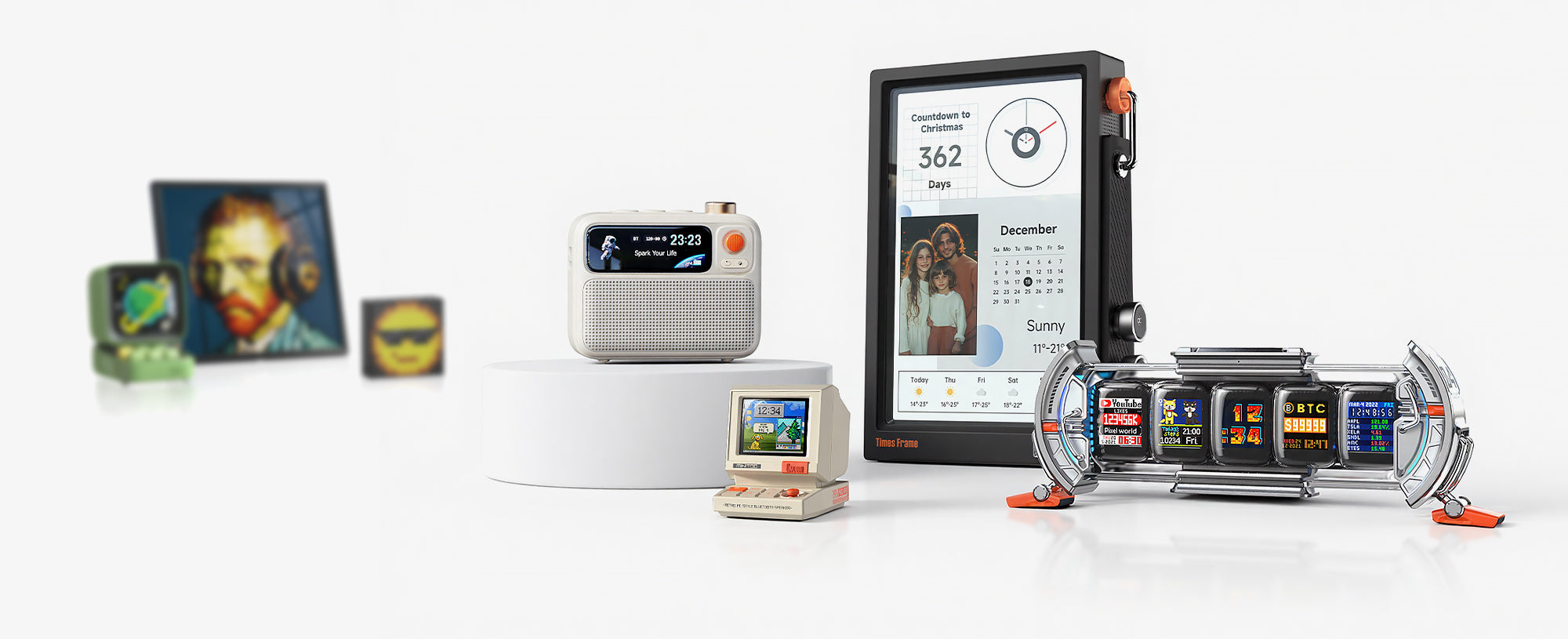
The first thing support needs to know is exactly which device you have. Divoom makes multiple products — the Times Gate smart desk dashboard, the Pixoo-64 pixel art display, the Times Frame digital photo frame, the Ditoo Pro retro Bluetooth speaker, and several others. Each product has different firmware, different features, and different troubleshooting steps.
You can find the product name on the original packaging, on the device label (usually on the bottom or back), or in the Divoom app under the device settings page. If you are not sure which model you have, the app device page will show the exact product name.
2. Firmware Version
Firmware version is one of the most important pieces of troubleshooting information. Many issues are caused by outdated firmware, and some bugs only exist in specific firmware versions. If the support team knows your firmware version, they can immediately check whether the issue is a known bug and whether an update will fix it.
To find your firmware version, open the Divoom app, go to your device settings, and look for "Firmware Version" or "Device Info." If your device can still connect to the app, this information is usually displayed on the main device page. If the device cannot connect at all, note that fact — it tells the support team the problem may be connection-related.
3. App Version and Operating System
The Divoom app is regularly updated with bug fixes and compatibility improvements. Some issues only occur on specific app versions or with specific operating system versions. Support needs to know both your app version and your phone or tablet operating system (iOS or Android, plus the version number).
To check your app version, go to the app settings or the app store page for Divoom. For your operating system version, check your phone settings under "About Phone" (Android) or "General > About" (iOS). Include both numbers in your support ticket.
4. A Clear Description of the Problem
This sounds obvious, but it is where most support tickets fall short. A vague description like "it does not work" gives the support team nothing to work with. A clear description includes specific details that help narrow down the problem.
A good problem description answers these questions:
- What exactly is happening? "The device shows a blank screen" is better than "it is broken."
- When did the problem start? "After the latest firmware update" or "after I changed my Wi-Fi router" gives important context.
- How often does it happen? "Every time I try to connect" versus "it happens randomly about once a day" points to different causes.
- What have you already tried? If you have restarted the device, reinstalled the app, or reset the Wi-Fi connection, say so. This prevents the support team from suggesting steps you have already taken.
5. Screenshots or Video of the Issue
A screenshot or short video can communicate what paragraphs of text cannot. If the app shows an error message, take a screenshot. If the device display is showing incorrect pixels or flickering, record a short video. If the connection process fails at a specific step, screenshot each step.
Visual evidence helps the support team confirm the exact issue without having to ask you to reproduce it and describe it in words. In many cases, a single screenshot of an error message is enough for the support team to identify the problem and suggest a fix.
6. Purchase Proof and Order Number
If your issue might require a warranty claim, the support team will need to verify your purchase. Having your order number, purchase receipt, or order confirmation email ready speeds up this process significantly.
Acceptable purchase proof includes the order confirmation email from the official Divoom website, an Amazon order number, or a receipt from an authorized retailer. Without purchase proof, the support team cannot verify warranty eligibility, which can delay hardware-related resolutions.


Need Help with Your Divoom Device?
Find product manuals, setup guides, and support resources for every Divoom device in one place.
View Product Manuals →Device-Specific Tips for Common Divoom Products
While the checklist above applies to every Divoom device, some products have specific troubleshooting considerations that are worth mentioning in your support ticket.
Times Gate
If your Times Gate is experiencing multi-screen display issues or Wi-Fi connection failures, note whether the problem affects all screens or just one. Also mention your Wi-Fi network type (2.4 GHz or 5 GHz), since the Times Gate connects on 2.4 GHz networks. If the device was working before a router change, mention that specifically — router configuration is one of the most common Times Gate connection issues.
Pixoo-64
For Pixoo-64 issues, pay attention to pixel display anomalies. If specific pixels are stuck, dead, or showing the wrong color, take a close-up photo of the affected area. If the app fails to sync pixel art to the display, note whether the sync fails completely or only for certain content types. App sync failures are often version-specific, so your app version is especially important here.
Times Frame
Times Frame support tickets often involve photo sync issues or remote sharing failures. If photos are not appearing on the frame, check whether the issue affects photos sent from the app or only remote shares from other users. If you are experiencing storage-related issues, note how many photos are currently stored on the device. The Times Frame has 64 GB of storage, and while running out is rare, it can affect sync behavior.
Ditoo Pro
For Ditoo Pro issues, distinguish between Bluetooth audio problems and pixel display problems. If Bluetooth pairing fails, note which device you are trying to pair with and whether other Bluetooth devices connect to it successfully. If the pixel animation display is not working but audio is fine, the issue is likely app-related rather than hardware-related — which means your app version and operating system information become especially important.
How to Contact Divoom Support
Once you have gathered all the information above, you can contact Divoom support through the official website. The support team handles tickets through the Divoom support and product manual page, which also hosts setup guides and frequently asked questions that might resolve your issue without a support ticket.
When submitting your ticket, include all six checklist items in a single message. Do not split the information across multiple messages — that makes it harder for the support team to see the full picture at once. A well-organized first message looks like this:
- Device: [Product name and model]
- Firmware: [Version number]
- App Version: [Version number]
- OS: [iOS/Android version]
- Problem: [Clear description with when, how often, and what you tried]
- Attachments: [Screenshots or video]
- Purchase: [Order number or receipt, if warranty-related]
This format gives the support team everything they need in a single glance. No back-and-forth. No delays.
Frequently Asked Questions
How long does Divoom support take to respond?
Response times vary depending on ticket volume and complexity, but most tickets receive an initial response within 24 to 48 hours. Tickets with complete information tend to move faster because the support team can start troubleshooting immediately without requesting additional details.
Can Divoom support help if I bought from a third-party seller?
Divoom warranty applies to products purchased through official channels and authorized retailers. If you purchased from a third-party seller, support can still help with troubleshooting and app-related issues, but warranty claims may require purchase verification. Contact support with your device serial number for specific guidance.
How do I update my Divoom firmware?
Firmware updates are delivered through the Divoom app. Open the app, connect to your device, and navigate to the device settings page. If a firmware update is available, you will see a prompt to install it. Make sure your device stays connected to power and Wi-Fi during the update process.
What if my device is out of warranty?
Divoom support can still assist with troubleshooting and app-related issues even if your device is out of warranty. For hardware issues outside the warranty period, the support team can advise on repair options or replacement alternatives. Contact support through the official website with your device details.

Explore the Full Divoom Product Line
From smart desk dashboards to pixel art displays and retro Bluetooth speakers — every Divoom product is backed by official support and app connectivity.
Shop Divoom Products →

