

Search "AI desk setup" and you get 200 million results. Scroll through them and you'll find AI-generated desks with floating monitors, impossible cable management, and tabletops that don't exist. Trends? Sure. But most of them exist only inside a diffusion model.
That's the problem with AI desk setup trends in 2026: there's so much generated content that real, usable trends are buried under layers of pixels that were never meant to be a real desk.
After digging through search data, YouTube desk tours with millions of views, and the tools people actually use, here's the honest take: not every AI desk trend is worth following. But the ones that are — they actually change how your desk works.
Here are the 5 AI desk setup trends that matter for real desks, and what they mean for yours.
Trend #1 — AI-Powered Desk Layout Planning
The most searched AI desk setup phrase isn't "AI desk setup ideas" — it's "AI desk setup generator" and "AI desk setup visualizer." People want to see what their desk could look like before moving a single cable.
Tools like Ideal House and various AI room planners let you upload a photo of your current desk and instantly see alternative layouts. It's useful — especially if you're working with a small corner or a multi-purpose space.
What this means for your desk: AI layout tools are great for the planning phase, but they show you what's visually possible, not what's practically useful. The real trend isn't AI-generated desk images — it's AI-assisted decision making: understanding what goes where and why.
That's where the real shift happens — from "how does it look" to "how does it work."
Trend #2 — Real-Time Information at a Glance
Search data shows "smart desk setup" has grown alongside "AI desk setup." People aren't just looking for a nice-looking desk — they want a desk that does something.
The most practical AI-adjacent trend in 2026 is putting real-time information where you can see it without switching apps or picking up your phone. Calendar updates. Weather alerts. Focus timers. System notifications. All visible from the corner of your eye while you work.
Editor's note: Not all AI-adjacent trends are created equal. This one — real-time information on your desk — is the most immediately useful trend for anyone who spends 6+ hours at a desk daily. It doesn't require a complex setup. One display. One app. Done.
Smart displays like the Times Gate and Times Frame are designed for exactly this. Connected via Wi-Fi and controlled through the Divoom app, they turn your desk into an information dashboard — showing your schedule, weather, notifications, and even custom productivity stats without competing for screen space on your monitor.
This official DIVOOM video shows the glanceable dashboard role behind the real-time information trend.

This isn't about adding more screens to your desk. It's about making the screen you already look at — your desk surface — actually useful beyond decoration.
Trend #3 — Smart Desk Accessories & Automation
YouTube desk setup tours pulling hundreds of thousands of views have a common thread: smart accessories. Standing desks with memory presets, smart LED strips that sync with your calendar, cable management systems with built-in power monitoring, and sensor-driven desk lights that adjust based on time of day.
The trend here isn't any single gadget — it's the integration. The best smart desk setups in 2026 don't have five different apps controlling five different accessories. They have one ecosystem that talks to everything.
What this means for your desk: Before buying smart accessories, ask: does this connect to the tools I already use? A desk full of disconnected "smart" things is just a desk with more cables. Look for accessories that share an app ecosystem or integrate with your existing workflow.
Trend #4 — AI-Assisted Creativity & Visual Atmosphere
Desk setup tours on YouTube consistently get millions of views. And the most-watched ones share a secret: they prioritize atmosphere as much as ergonomics. Warm lighting. Intentional color palettes. Screens that don't just display data, but express personality.
This is where the creative side of AI desk trends comes in. Not "AI generates a picture of your dream desk" (see Trend #1 warning), but AI-assisted tools that help you design and rotate your desk's visual identity throughout the day.
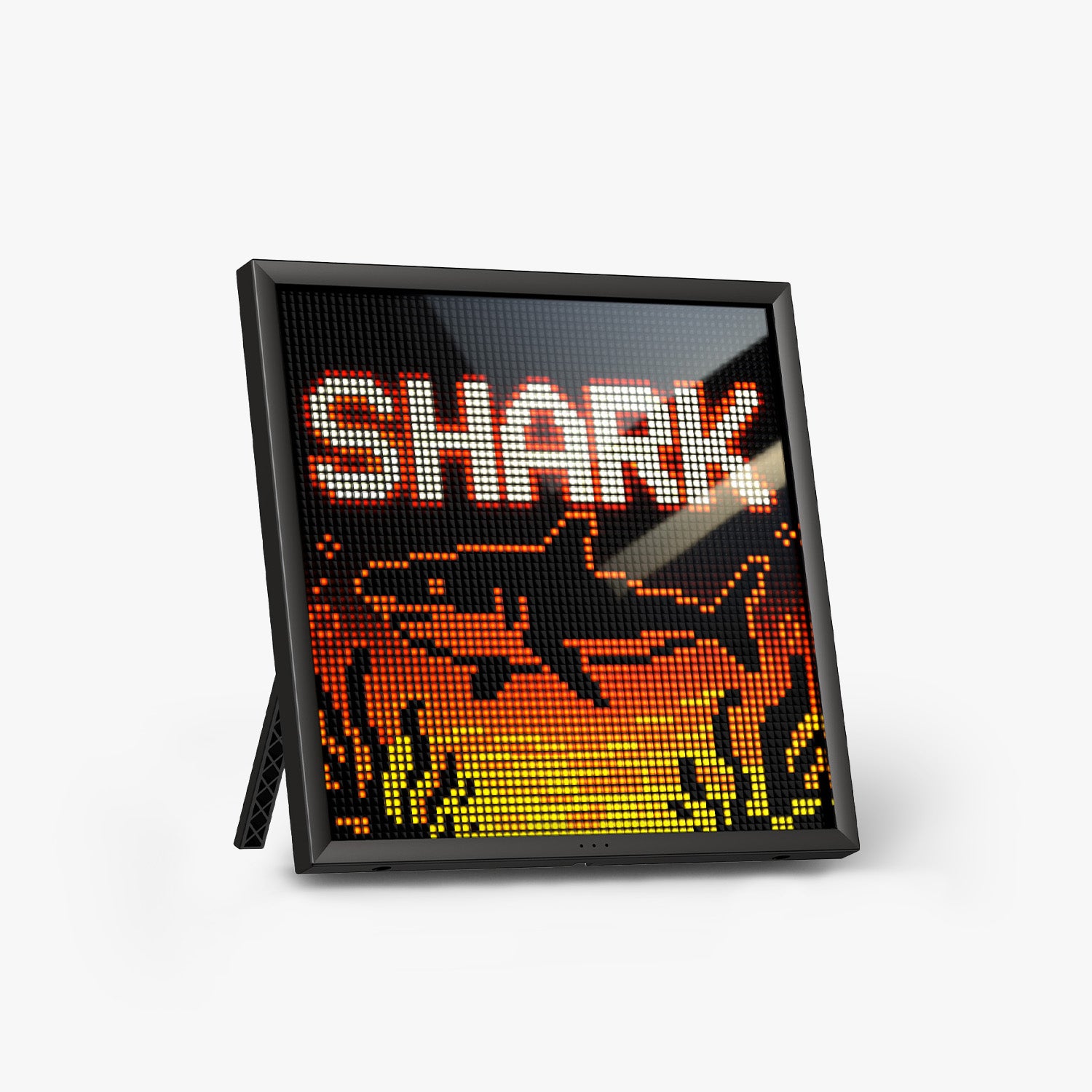
Products like the Pixoo-64 and Ditoo-Pro fit naturally here. They're not just pixel displays — they're atmosphere switches. In work mode, they show your focus timer or notification dots. In break mode, they become animated art. The Divoom app library gives you thousands of designs, or you can upload your own.

What this means for your desk: Visual atmosphere isn't decoration — it's a productivity tool. A desk that can switch between "deep work" and "creative flow" modes gives you more than a pretty workspace. It gives you a workspace that adapts to how you work.
Trend #5 — The "AI Engineer" Desk Standard
Search data reveals a growing sub-trend: "AI engineer desk setup." This audience — developers, ML engineers, and AI tool users — treats their desk as a command center. Multiple monitors? Often. Standing desk? Usually. But the defining characteristic is information density: they need to see data, status, and system information constantly.
For this group, a smart display isn't a luxury — it's part of the workflow. Calendar, CI/CD pipeline status, server health, weather (because when you spend 12 hours at a desk, you forget what's outside).
What this means for your desk: Even if you're not an AI engineer, their desk choices are worth watching. They optimize for what works, not what looks good in a photo. If a display or accessory survives in an engineer's daily workflow, it's probably practical enough for anyone.
The Times Gate is especially relevant here — its Wi-Fi connectivity and customizable info panels make it a natural fit for data-heavy workflows without adding another full monitor to the desk.
AI Desk Trends at a Glance
Not every trend fits every desk. Here's a quick comparison to help you decide what matters for yours:
| Trend | Core Value | Best For | Divoom Fit |
|---|---|---|---|
| AI Layout Planning | Visualize before building | New desk setups, small spaces | Planning stage only |
| Real-Time Info Desk | Information without interruption | Daily desk users, remote workers | Times Gate & Times Frame |
| Smart Accessories | Integrated ecosystem | Tech enthusiasts, automation fans | Complementary |
| Visual Atmosphere | Adaptive workspace mood | Creatives, WFH, content creators | Pixoo-64 & Ditoo-Pro |
| AI Engineer Desk | Data density & workflow | Developers, power users | Times Gate |
Which Trend Fits Your Desk?
Here's a simple way to think about it:
- If you spend most of your day in front of a screen and want less context switching → start with Real-Time Info (Trend #2). A Times Gate or Times Frame puts your calendar, weather, and notifications where you can see them without a second monitor.
- If your desk is a creative space and atmosphere matters as much as ergonomics → Visual Atmosphere (Trend #4) is your entry point. The Pixoo-64 or Ditoo-Pro lets you switch between work mode and creative mode in one tap.
- If you're just getting started and want to test the smart desk concept → the Ditoo-Pro is the lowest-barrier entry: a display, a Bluetooth speaker, and a desk companion in one compact package.
- If you're optimizing for productivity and want maximum information density → build around the Times Gate as your desk's information hub.



AI desk setup trends are real. But the real value isn't in AI-generated desk photos or speculative future predictions — it's in the practical shifts you can make today. A desk that shows you what matters. A desk that adapts to how you work. A desk that's more than just a table with a computer on it.
That's not a trend. That's a better way to work.
Frequently Asked Questions
Can Times Gate display my Google Calendar or daily schedule?
Yes. Through the Divoom app, you can sync your calendar and configure which events show on your Times Gate. The display updates over Wi-Fi, so you don't need to keep your phone connected.
Does Pixoo-64 work with custom designs, or only preset animations?
Both. You can upload your own pixel art designs through the Divoom app, or choose from thousands of community-created animations in the app gallery. The app also supports GIF-to-pixel conversion for creating custom content from existing images.
Is Ditoo-Pro just a display, or does it have other features?
Ditoo-Pro is a 3-in-1 device: a pixel display, a Bluetooth speaker, and a desk companion. It doubles as a notification center (showing messages, calls, and timer alerts) while also playing audio from your computer or phone via Bluetooth.
Do I need any technical skills to set up these smart displays?
No. All Divoom smart displays connect through the Divoom app (available on iOS and Android). Plug in the power, connect via Wi-Fi or Bluetooth depending on the model, and the app guides you through the rest. Most setups take under 10 minutes.
Can I control multiple Divoom displays from one app?
Yes. The Divoom app supports managing multiple devices from a single account. You can assign different content to each display — for example, calendar on your Times Gate and ambient art on your Pixoo-64 — and switch between them without reconnecting.


