

A dual-monitor desk is already a multi-screen environment. Two monitors handle your work, your communication tools, and your reference material. Adding anything else to the desk risks creating visual clutter that undermines the efficiency of having two screens in the first place.
But a smart display is different. Instead of adding another screen for work, it adds a screen for ambient information — clock, weather, social counters, pixel art — that you glance at rather than interact with. The trick is choosing the right device and placing it where it complements your monitors rather than competing with them.
Times Gate and Pixoo-64 are the two best smart displays for dual-monitor setups, and each fits a different desk layout.
Times Gate Between Two Monitors
The most natural spot for Times Gate in a dual-monitor setup is between the two screens. Its five-screen tower design fits in the gap where monitor bezels meet, creating a continuous visual flow from left monitor to Times Gate to right monitor. The aluminum stand keeps it elevated so the screens sit at eye level alongside your monitors.
Use the five screens to show what your monitors do not have room for: a large clock, today's weather, a 5-day forecast, a calendar view, and a Pomodoro or countdown timer. Because Times Gate uses LCD screens rather than LED pixels, it reads like a mini dashboard rather than a decorative piece — which fits the professional look of a dual-monitor workstation.
Set the dual-edge RGB lighting to a static white or warm amber to match the monitor backlighting. Avoid pulsing or rainbow lighting modes in this position, as they can create visual competition with your monitor content. Subtle lighting keeps Times Gate feeling like part of the monitor array rather than a separate gadget.

Pixoo-64 Beside a Secondary Monitor
If your dual monitors sit side by side with no gap between them — or if you use a stacked vertical monitor layout — Pixoo-64 is the better fit. Place it beside your secondary monitor on whichever side has extra desk space. Its compact footprint means it occupies about the same surface area as a coffee mug.
Pixoo-64 works best in this position as a pixel art and ambient content display. Run a rotating playlist of pixel art, a social counter if you stream, or a countdown timer during focus sessions. The LED brightness makes it visible even with two monitors running at full brightness.
Angle Pixoo-64 slightly toward your primary seating position so you can see it without turning your head. The built-in stand supports both landscape and portrait orientation — portrait mode works well in narrow spaces between a monitor and a wall or shelf.
Triple-Screen Workflow: Dual Monitors Plus Smart Display
The most efficient setup treats Times Gate or Pixoo-64 as a dedicated peripheral information screen. Your left and right monitors handle active work — documents, code, design tools, communication. The smart display handles everything you need to check without switching windows.
Assign specific widgets to match your workflow. During deep work, show a countdown timer and a "do not disturb" indicator. During meetings, show the current time and a calendar of upcoming events. During breaks, switch to pixel art or photo slideshow mode.
The Divoom app lets you save multiple layouts and switch between them instantly. This turns your smart display into a context-aware companion that adapts to what you are doing, rather than showing the same information all day.

Cable Management for Dual-Monitor Smart Display Setups

Adding a smart display to a dual-monitor desk means adding one more cable. The key to keeping the setup clean is routing the smart display cable alongside your monitor cables. Both Times Gate and Pixoo-64 use a single USB-C power cable that can run through a cable management tray or behind a monitor arm.
If you use a monitor stand or arm, clip the smart display cable to the arm using adhesive cable clips. This keeps the cable off the desk surface and makes it look like part of the monitor wiring. For Times Gate, the USB-C cable connects to the base and can be routed through the aluminum stand's cable channel for a clean look.
Pixoo-64's cable exits from the back and is easy to hide behind the device or route through a desk grommet. In both cases, the single cable is far cleaner than the three or four cables that separate clock, weather, and calendar gadgets would require.
Frequently Asked Questions
Will a smart display between dual monitors block my view?
No. Times Gate is designed to sit low enough that it does not block the bottom portion of your monitors. Its five-screen tower is shorter than most monitor bezels. Pixoo-64 is even more compact and sits flat on the desk, so it stays below the monitor viewing area.
Can I control the smart display without taking hands off my keyboard?
Yes. The Divoom app on your phone controls all display settings, widget layouts, and content. You can keep the phone beside your keyboard or in a phone stand and change layouts with a tap. Times Gate also supports physical buttons on the base for quick mode switching.
Does the smart display connect to the computer or work independently?
Both Times Gate and Pixoo-64 work independently through the Divoom app on your phone. They do not need to connect to your computer. They use Wi-Fi or Bluetooth to sync with the app, which means they continue working even when your computer is off or in sleep mode.
Build Your Dual-Monitor Smart Display Setup
A smart display turns the gap between your monitors — or the empty space beside them — into useful ambient information. Times Gate creates a three-screen array with five widgets visible at once. Pixoo-64 adds pixel art and counters in a compact footprint. Either way, your dual-monitor desk gets smarter without getting more cluttered.
Add a smart display to your dual monitors
Your monitors handle the work. Let a smart display handle the ambient info.

Divoom Times Gate
Multi-screen information dashboard
Fits between monitors for a five-screen info array. Clock, weather, calendar, timers — all visible alongside your work.
View Times Gate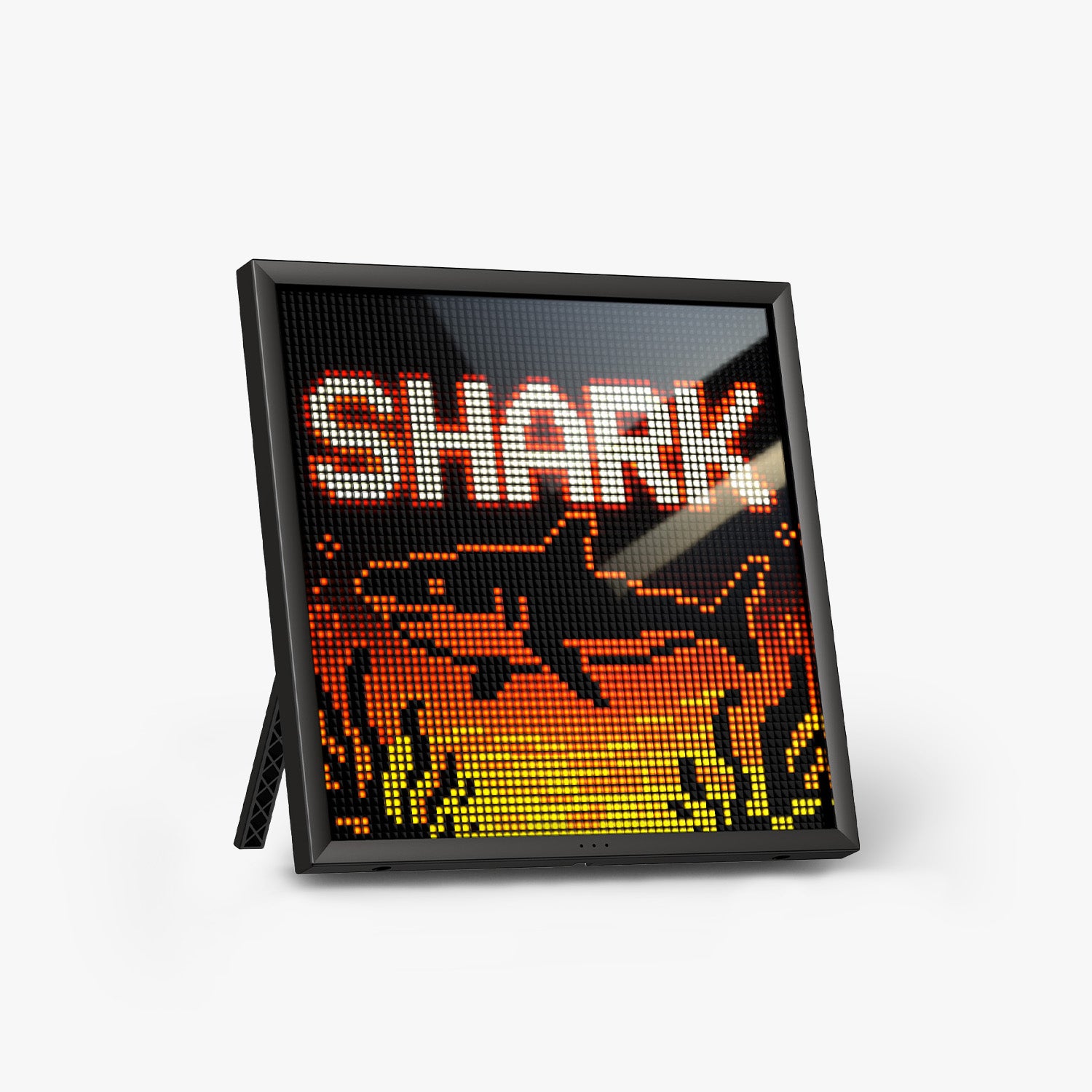
Divoom Pixoo-64
Compact pixel art companion
Sits beside a secondary monitor for pixel art, social counters, and ambient content. Compact footprint fits any gap.
View Pixoo-64

