

Una pantalla inteligente es un compañero de escritorio a largo plazo. A diferencia de los teléfonos o laptops que se reemplazan cada pocos años, una pantalla inteligente bien mantenida puede permanecer en tu escritorio durante años, luciendo tan bien como el día que la configuraste. Pero necesita cuidado ocasional — limpieza, actualización y renovación de contenido — para mantenerse así.
Ya uses Times Gate, Times Frame o Pixoo-64, una rutina simple de mantenimiento mantiene la pantalla fresca y funcionando de manera confiable. Esta lista de verificación cubre qué hacer y con qué frecuencia.
Semanalmente: Actualización de contenido y rotación de listas de reproducción
La forma más rápida de mantener una pantalla inteligente fresca es cambiar lo que muestra. Programa un recordatorio semanal para rotar tus listas de reproducción de arte pixelado, actualizar tus álbumes de fotos en Times Frame o ajustar la disposición de widgets en Times Gate. Incluso un pequeño cambio — cambiar un widget, añadir una pieza de arte pixelado estacional — evita que la pantalla se convierta en ruido de fondo invisible.
Usa la función de programación de la app Divoom para automatizar gran parte de esto. Crea múltiples diseños o listas de reproducción y configúralos para que roten en un horario diario o por horas. Contenido para la mañana, tarde y noche asegura que tu pantalla se adapte a tu rutina sin esfuerzo manual.
Para Pixoo-64, explora la biblioteca comunitaria semanalmente y añade nuevo arte pixelado a tu rotación. Para Times Frame, sube fotos nuevas desde la galería de tu teléfono cada semana o dos. Para Times Gate, ajusta la disposición de los widgets según tus prioridades actuales — temporada de exámenes, fechas límite de proyectos o planificación de vacaciones.
Mensualmente: Limpieza y eliminación de polvo
El polvo afecta a todas las pantallas, pero las pantallas inteligentes son particularmente vulnerables porque a menudo están en áreas abiertas del escritorio donde el polvo se asienta en las pantallas y en las grietas. Una limpieza mensual mantiene la pantalla nítida y evita que la acumulación de polvo afecte la visibilidad.
Para Times Gate, utiliza un paño de microfibra para limpiar cada una de las cinco pantallas LCD. Limpia el soporte de aluminio y las tiras de luz RGB a lo largo de los bordes. Revisa la base para detectar acumulación de polvo alrededor de los botones y el punto de conexión del cable.
Para Times Frame, el diseño transparente hace que el polvo sea más visible tanto en el frente como en la parte trasera de la pantalla. Limpia ambos lados suavemente con un paño de microfibra. Evita limpiadores líquidos cerca de los bordes de la pantalla.
Para Pixoo-64, el panel LED tiene una cubierta de plástico que puede limpiarse con un paño de microfibra seco. No uses toallitas húmedas ni limpiadores a base de alcohol en la superficie LED, ya que pueden dañar el recubrimiento de los píxeles.

Trimestral: Actualizaciones de la app y del firmware
La app de Divoom y el firmware del dispositivo reciben actualizaciones que añaden nuevas funciones, mejoran el rendimiento y corrigen errores. Programa un recordatorio trimestral para buscar actualizaciones de la app en la tienda de aplicaciones de tu teléfono y actualizaciones de firmware en la configuración del dispositivo dentro de la app de Divoom.
Las actualizaciones de firmware pueden añadir nuevos tipos de widgets, mejorar la conectividad Wi-Fi y optimizar el rendimiento de la pantalla. El proceso de actualización toma unos minutos a través de la app y requiere que el dispositivo esté encendido y conectado. Mantén el dispositivo enchufado durante las actualizaciones de firmware para evitar interrupciones.
Después de actualizar, verifica que tus diseños y listas de reproducción existentes sigan funcionando correctamente. Ocasionalmente, una actualización cambia el comportamiento de los widgets o las opciones de diseño, y una revisión rápida asegura que todo siga viéndose como deseas.
Anual: Limpieza profunda, revisión de cables y reevaluación de la configuración
Una vez al año, realiza una sesión de mantenimiento más profunda. Desconecta el dispositivo y limpia todas las superficies, incluyendo áreas que la limpieza mensual podría pasar por alto: puertos de conexión de cables, uniones del soporte, aberturas de ventilación. Revisa el cable de alimentación por si presenta desgaste, especialmente en los puntos de conexión donde los cables se doblan.
Reevalúa la configuración de tu escritorio mientras lo haces. Tu flujo de trabajo puede haber cambiado durante el año, y el diseño de tu pantalla inteligente debería cambiar con él. Revisa tus asignaciones de widgets, álbumes de fotos y listas de reproducción de pixel art. Elimina contenido que ya no sea relevante. Añade contenido nuevo que refleje tus intereses o proyectos actuales.
Esta renovación anual también es un buen momento para comprobar si un nuevo dispositivo Divoom complementaría tu configuración actual. Si tu escritorio ha crecido o tus necesidades han cambiado, considera si añadir un segundo dispositivo crearía un entorno de pantalla inteligente más completo.
Resumen del programa de mantenimiento
| Frecuencia | Tarea | Herramientas necesarias |
|---|---|---|
| Semanal | Gira el contenido, actualiza las listas de reproducción, ajusta los diseños | App Divoom |
| Mensualmente | Limpia pantallas y superficies con paño de microfibra seco | Paño de microfibra |
| Trimestralmente | Revisar e instalar actualizaciones de app + firmware | Tienda de apps del teléfono, app Divoom |
| Anualmente | Limpieza profunda, inspección de cables, reevaluación de configuración | Paño de microfibra, cepillo suave, app Divoom |
Preguntas frecuentes
¿Puedo usar toallitas para limpiar la pantalla en mi pantalla inteligente?
Para las pantallas LCD de Times Gate y Times Frame, usa un paño de microfibra ligeramente humedecido si es necesario — nunca satures la pantalla. Para el panel LED de Pixoo-64, usa solo un paño de microfibra seco. Los limpiadores líquidos, toallitas con alcohol y toallas de papel pueden dañar la superficie o dejar rayones.
¿Cómo sé cuándo hay una actualización de firmware disponible?
La app Divoom te notifica cuando hay una actualización de firmware disponible para tu dispositivo conectado. También puedes verificar manualmente yendo a la configuración del dispositivo en la app y seleccionando "Actualizar firmware". Se recomienda hacer revisiones manuales trimestrales incluso sin notificaciones.
¿Debo dejar mi pantalla inteligente encendida 24/7?
Times Gate, Times Frame y Pixoo-64 están diseñados para uso continuo y pueden estar encendidos 24/7 sin problema. Sin embargo, si quieres extender la vida útil de la pantalla, considera programar un período de apagado durante la noche o cuando no estés en tu escritorio. La app Divoom soporta horarios programados de encendido/apagado.
Mantén tu pantalla inteligente como nueva
El mantenimiento regular no toma mucho tiempo — unos minutos cada semana, un poco más cada mes — pero hace una diferencia notable en cómo se ve y funciona tu pantalla inteligente. La rotación de contenido la mantiene interesante. La limpieza la mantiene nítida. Las actualizaciones la mantienen confiable. Una renovación profunda anual hace que se sienta como una parte planeada de tu escritorio y no un gadget olvidado.
Mantén tu pantalla inteligente fresca
Una pantalla inteligente bien mantenida permanece en tu escritorio durante años. Sigue esta lista de verificación para mantenerla como nueva.

Divoom Times Gate
Panel de control multi-pantalla
Limpia cinco pantallas LCD mensualmente. Revisa los bordes RGB para detectar polvo. Actualiza el firmware trimestralmente para nuevos widgets.
Ver Times Gate
 Divoom Times Frame
Pantalla transparente
Limpia ambos lados de la pantalla transparente mensualmente. Actualiza los álbumes de fotos semanalmente. Actualiza la app trimestralmente.
Ver Times Frame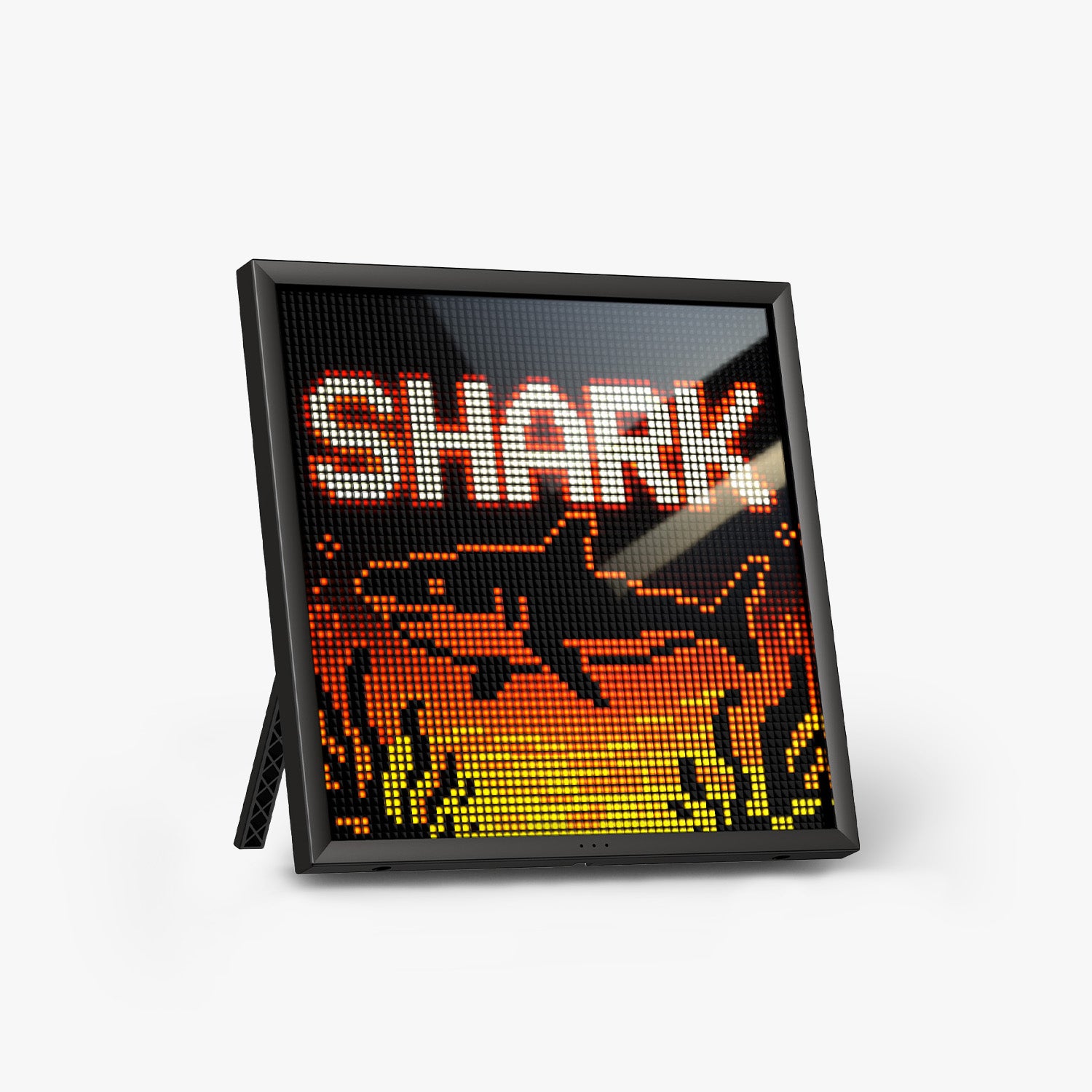
Divoom Pixoo-64
Lienzo de pixel art
Solo paño de microfibra seco en el panel LED. Rota las listas de reproducción de pixel art semanalmente. Actualiza el firmware trimestralmente para un mejor rendimiento.
Ver Pixoo-64

