

Bought your first Divoom on Black Friday? Start with one result: send a community design to a compatible pixel display, make a two-frame animation, choose a clock face, or upload a few photos to Times Frame. The right first task depends on your model. You do not need to explore every feature at once.
This guide begins after basic setup and focuses on making the device yours. Follow the sections relevant to your purchase, then use the model table to choose what to try next. Features and menu labels vary by hardware and app version; the screenshots below are official examples rather than an identical screen-by-screen path for every phone.
Just Got Your First Divoom? Here's What to Try First
Your first session should end with something you can see on the device. Choose a small task rather than opening every menu: one artwork, one readable clock, or one photograph. That gives you a working starting point before you change more settings.
Confirm that the intended model is selected in the app. If you still need to download or connect it, use the main Divoom app guide and product manual library. Music playing through a speaker does not by itself confirm that app display control is connected.
Plan your exploration in stages. In the first hour, apply one item. During the first day, adjust how it looks from your usual seat. During the first week, make a small original creation or refine a model-specific display. These are suggested tasks, not required setup times.
Explore the Pixel Art Community Before Creating Your Own
You do not need drawing skills to enjoy a compatible pixel display. Open the community gallery and browse a subject you already like: pets, landscapes, space, seasonal designs, or simple patterns. Pick one design with a recognizable shape rather than downloading a large collection immediately.
Open its preview, check that the content suits your selected device, and use the available device-apply or send control. Wait for the transfer and look at the actual screen. A preview on your phone can show details that become less readable on a smaller display.
Keep three actions distinct: saving a favorite helps you find someone else's work again; saving a project preserves your creation; applying content changes the device. A heart or favorite action alone does not necessarily send an animation to the hardware. Keep the creator's attribution when sharing someone else's work.

Create Your First Custom Pixel Art Animation
Start with an original two-frame heart. Open the drawing or animation editor and select a canvas supported by your model. Use a plain background and one bright color, leaving space around the shape so it remains recognizable at the device's resolution.
Draw the heart in the first frame, duplicate that frame, and change a few edge pixels or its color in the second. Preview the loop and adjust its speed until the change looks deliberate. The official app listings confirm animation and editing tools, but not every device uses the same canvas size or transfer limits.
Save the project, then separately apply it to the selected compatible device. Watch a complete loop on the hardware before adding more frames. If it looks crowded, simplify the shape instead of trying to reproduce every detail visible on your phone.
| Step | Your task | Result |
|---|---|---|
| 1 | Choose the supported canvas | A project that fits your model |
| 2 | Draw a simple heart | One readable still image |
| 3 | Duplicate the frame and change a few pixels | A two-frame animation |
| 4 | Preview and save the project | An editable version to keep |
| 5 | Apply it and check the hardware | Your first personal animation |


Give Your Divoom a Clock Face That Matches Your Style
Choose a clock face you can read from where you actually sit. Large digits and a simple background are useful for working; a more decorative face may suit a shelf. Start with a ready-made face before attempting a custom design.
Open the clock controls available for your model, select a face, and confirm the change. Divoom's official FAQ advises using the checkmark or confirmation icon when saving a face or display setting. Check the physical screen after leaving the editing page so you know the choice was applied.
If the time is wrong, check your phone's time and the model's time settings rather than redrawing the face. For a result that disappears later, note whether the device changed channels, entered another display mode, or followed a schedule. Change one setting at a time so you can identify what caused it.
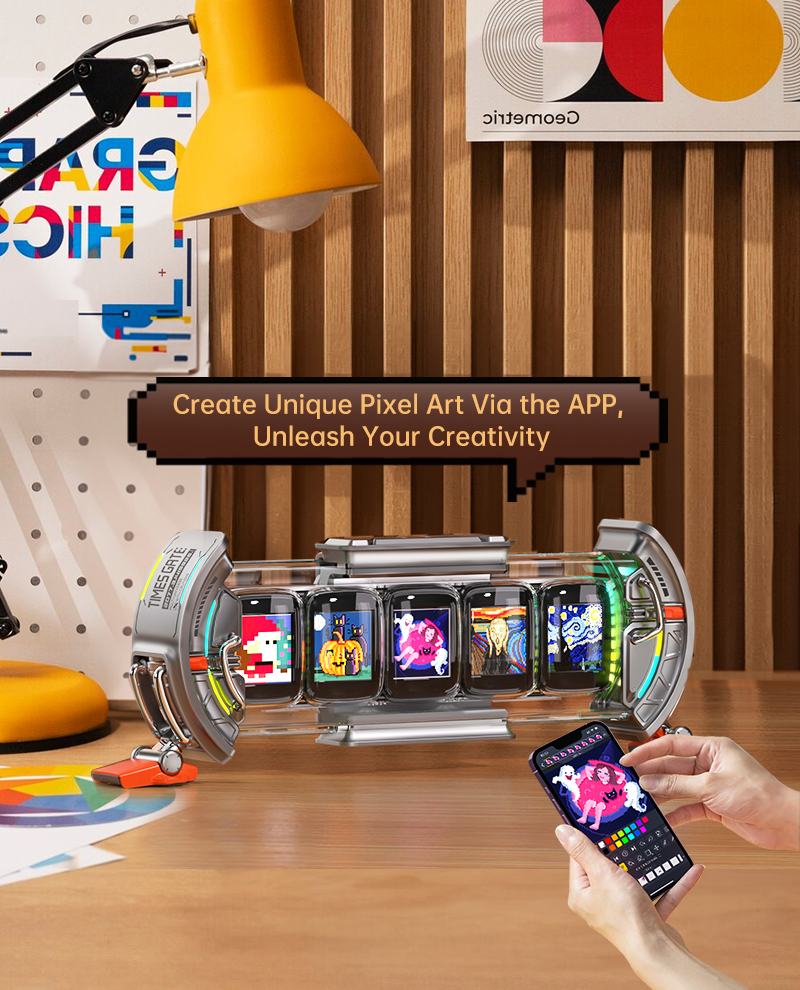
Turn Times Gate into a Personalized Five-Screen Dashboard
For Times Gate, give each screen a clear role. Start with a clock and one visual panel, then add supported information only when you know what you want to check. Five different panels are useful when they serve your routine, rather than repeating the same information.
In the app's Times Gate controls, select the screen or supported layout you want to customize, choose its available content, and confirm. Work through the panels individually where the interface supports it, checking the device after each change. Some templates or content types may impose their own layout rules.
Try the arrangement below as an idea, not a promise that every widget or data provider is available. Live information requires the relevant connection and service support; finance-style data may be delayed. If an account counter or ticker is unavailable, substitute an artwork or clock rather than treating it as a hardware fault.
| Panel | First configuration idea |
|---|---|
| 1 | A large local clock |
| 2 | Weather for the correct location |
| 3 | A second clock or supported information widget |
| 4 | A favorite pixel animation |
| 5 | Another visual or supported account counter |
Turn Times Frame into Your Personal Photo and Video Display
On Times Frame, begin with three photographs: a person, a pet, and a place. Open its photo or album controls, select images from your phone, and follow the upload and confirmation prompts. Give photo-library access when needed for the items you want to upload.
Check the crop and orientation on the frame itself. A face near the edge of a photograph can be cut off by a layout that looks attractive with another image. Adjust the supported layout or choose a different picture before uploading an entire album.
Once photos work, try one short personal video using the current model's supported file requirements. For remote sharing, follow the current account and sharing instructions and test with one trusted person. Photo upload, clock layouts, and information widgets are separate tasks; finish one before combining them.

Customize Your Display for Work, Gaming, and Bedtime
Use the device for one ordinary day before changing every option. At your desk, check readability and choose content that does not constantly distract you. For gaming, try a different artwork or color palette rather than assuming the display has to run every available information feed.
At night, review brightness and any supported screen-off or scheduling controls. Save the change and check it in the room where the device will be used. Features such as automatic day/night switching differ by model, so use the controls actually available rather than assuming a universal schedule.
On products that offer alarms or white noise, test those functions separately and choose settings you like. Not every Divoom screen is a speaker or bedside clock. If brightness is your next task, our day and night brightness guide offers further context alongside the exact model manual.
Discover More Creative Tools in the Divoom App
The next step after a simple animation is learning one editing tool at a time. Add a separate layer for a background, try a short word in the text editor, or use selection and duplication to reuse part of a drawing. Keep the original project before experimenting.
The official Google Play listing describes layers, selection tools, text editing, picture/GIF import, video-to-pixel conversion, and MP4 export. These are app creation capabilities: exporting a video for social media does not mean every device can play that MP4 directly. For imports, choose a short clip or your own image with a clear subject.
Try color-by-number if a blank canvas feels intimidating. It gives you a small creative task before drawing freely. Share a finished work only when you want to, and avoid assuming that completing a coloring activity automatically sends it to the device. Check the available save, export, and apply options separately.

What Should You Try First on Your Divoom Model?
Use the table as a task selector. Pick the row for the product you own, complete its first task, and then decide whether you want a more creative or practical next step. You can skip every section that does not apply to your hardware.
Screen specifications and creative workflows are not interchangeable. A 16 × 16 pixel composition needs different detail from a 64 × 64 composition; a photo frame and a five-screen dashboard have different strengths. Choose files, artwork, and controls supported by the selected model.
For AstroToo, start with one supported visual or clock face while listening to familiar music, then customize further. For any model, use the matching product manual to verify hardware-specific options rather than copying a tutorial for a different generation.
| Model | First success task |
|---|---|
| Ditoo-Pro | Apply one clear community design to its 16 × 16 screen |
| MiniToo | Play music and apply one supported screen design |
| Tiivoo-2 | Display one personal photo or supported visual |
| AstroToo | Choose and confirm a personal clock face or visual |
| Pixoo-64 II | Apply one 64 × 64 composition or animation |
| Times Gate | Assign distinct supported content to the five screens |
| Times Frame | Upload three photos and check their crops |
Frequently Asked Questions About the Divoom App
What can I do with the Divoom app after buying my first device?
Choose a task supported by your model: apply community artwork, draw an animation, set a clock face, configure widgets, or upload photos. Start with one visible result before changing additional settings.
Is the Divoom app free to use?
The official App Store listing marks the app as free, and the Android developer description says there are no in-app purchases. Hardware capabilities still vary. Check the current official listing for your platform when downloading or updating.
Can I create my own pixel art and animations in the app?
Yes. The official listings describe drawing, layers, animation, and import tools. Begin with a small supported canvas and two frames, save the project, then apply it to a compatible device.
How do I send community pixel art to my Divoom device?
Select the intended device, open a compatible work, and use the available send or apply control. Confirm the result on the hardware. Favoriting a work is different from applying it, and button labels can vary.
Can I upload my own photos and videos to Times Frame?
Yes. Use the photo or media controls for your connected Times Frame and follow the current upload prompts. Test a few photos and one short supported video before importing a large collection.
Can I set different widgets on each Times Gate screen?
Times Gate supports different content across its five screens through the app. Available layouts, widgets, and data sources vary. Configure one panel at a time where supported, then check the complete arrangement.
Why does my saved clock face or pixel art disappear?
First confirm you saved and applied it to the intended device. Check active channels, display modes, and schedules before assuming it was deleted. If it continues, record the saving process, model, and app version for support.
Do all Divoom devices support the same app features?
No. Pixel canvases, photo/video playback, widgets, audio features, and connection requirements differ. Check the controls for the selected model and its manual; an app-store feature list does not guarantee hardware support for every feature.
Conclusion: Make Your First Divoom Truly Yours
Your first useful result can be small: a favorite artwork on the screen, an original animated heart, a clock you enjoy reading, or a few personal photographs. Each gives you a reason to explore further without learning the whole app at once.
Keep the version you like, make one change, and check the device before moving on. After a few sessions, you will know which parts of the app fit your routine and which features you can leave for later.
For the next question, use the official Divoom FAQs or support page. You bought it; now make it yours, one completed task at a time.


